How to Find WD My Cloud on Your Network
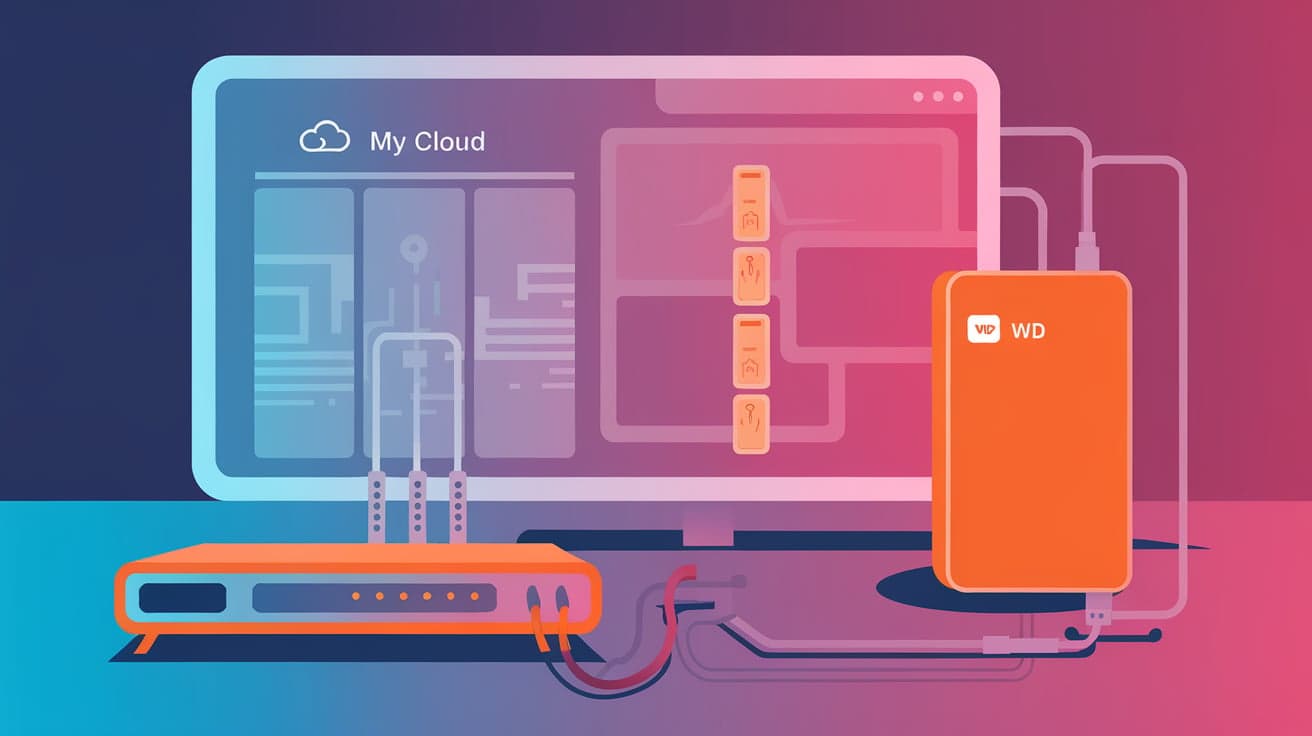
Setting up a WD My Cloud device can be exciting, but the first step is finding it on your network. Whether you’re using it for backing up files, sharing data, or storing your favorite photos, locating the device is key. Unfortunately, this step can be confusing, especially if you’re new to networking.
The good news is that finding your WD My Cloud is straightforward once you know the process. This article will guide you through several ways to locate your WD My Cloud on your home or office network. Whether you’re on Windows, Mac, or mobile, you’ll find simple steps to get started.
Why Can’t I See WD My Cloud on My Network?
Before we jump into the steps, let’s quickly address why your WD My Cloud might not show up:
Connection Issues: The device might not be properly connected to your router or powered on.
Network Settings: Your computer or router might not be configured to detect network devices.
Software Problems: Missing drivers or outdated firmware can cause issues.
Firewall or Antivirus Settings: Sometimes, security software blocks access to devices on the network.
Now that you know the possible causes, let’s explore the solutions.
Step 1: Check Your Physical Connections
The first thing to check is the physical setup of your WD My Cloud.
Power Up the Device: Make sure the My Cloud is plugged into a power source and turned on. The LED on the front should light up—usually blue when it’s working properly.
Connect to the Router: Use an Ethernet cable to connect the device to your router. Make sure the connection is secure on both ends.
Restart Your Router: Sometimes, a simple router restart can resolve connectivity issues.
If everything is connected properly, your My Cloud should be ready to communicate with your network.
Step 2: Use WD Discovery Software
The easiest way to find your WD My Cloud is by using the official WD Discovery software.
Download WD Discovery: Go to the WD website and download the WD Discovery tool for your operating system.
Install the Software: Follow the installation steps and launch the program.
Scan for Devices: The software will automatically search for WD devices on your network. If it finds your My Cloud, it will appear in the list.
Access Your Device: Click on the device to access its settings or shared folders.
This tool simplifies the process, especially if you’re not familiar with network settings.
Step 3: Locate WD My Cloud via Your Router
If the WD Discovery tool doesn’t work, you can check your router’s connected devices list.
Log In to Your Router: Open a web browser and type your router’s IP address (usually
192.168.1.1or192.168.0.1). Enter your username and password.View Connected Devices: Look for a section like “Attached Devices” or “Device List.” This will show all devices currently connected to your network.
Find WD My Cloud: Look for a device named “WDMyCloud” or something similar. Note its IP address.
This method is reliable if you’re comfortable accessing your router’s settings.
Step 4: Use File Explorer or Finder
Another way to find your My Cloud is through your computer’s file browser.
For Windows:
Open File Explorer: Press
Win + Eto open File Explorer.Go to Network: Click on the “Network” option in the left-hand menu.
Locate My Cloud: Your My Cloud device should appear under the “Storage” or “Computer” section. Double-click it to access.
For Mac:
Open Finder: Click the Finder icon in your dock.
Go to Network: Select “Network” from the sidebar.
Find My Cloud: Your device should appear in the list. Double-click to access.
If you don’t see the device, make sure network discovery is enabled on your computer.
Step 5: Enable Network Discovery
If your My Cloud still doesn’t appear, you might need to enable network discovery on your computer.
For Windows:
Open Control Panel: Type “Control Panel” in the search bar and open it.
Go to Network and Sharing Center: Click on “Network and Sharing Center” > “Change advanced sharing settings.”
Enable Discovery: Under “Network discovery,” select “Turn on network discovery” and save changes.
For Mac:
Go to System Preferences: Click on the Apple menu and select “System Preferences.”
Open Sharing: Select “Sharing” and ensure “File Sharing” is enabled.
This step ensures your computer can see other devices on the network.
Step 6: Use the Device’s IP Address
If all else fails, you can access your WD My Cloud directly using its IP address.
Find the IP Address: Use the router method described earlier to find the device’s IP address.
Access the Dashboard: Open a web browser and type the IP address into the address bar (e.g.,
http://192.168.1.5). This will open the My Cloud dashboard.Bookmark the Address: Save the IP address as a bookmark for quick access in the future.
This method works even if your My Cloud doesn’t appear in file browsers.
Common Troubleshooting Tips
Update Firmware: Ensure your My Cloud device is running the latest firmware. You can check this in the device dashboard.
Disable VPNs: If you’re using a VPN, it might interfere with network discovery. Disable it temporarily to see if the device appears.
Check Firewalls: Your computer’s firewall or antivirus might block the device. Add an exception for WD My Cloud in your security settings.
Conclusion
Finding your WD My Cloud on your network doesn’t have to be complicated. By following these steps, you can quickly locate the device and start using it for storage, backups, or file sharing. From checking physical connections to using tools like WD Discovery or your router’s settings, you now have multiple ways to find and access your My Cloud.
Once set up, you’ll enjoy the convenience of having a centralized storage solution that works seamlessly with all your devices.
FAQs
Why is my WD My Cloud not showing on the network?
This can happen due to connection issues, disabled network discovery, outdated firmware, or firewall settings blocking access.
How do I access my WD My Cloud on Windows?
Open File Explorer, go to “Network,” and look for your My Cloud device. Alternatively, use the IP address to access it through a web browser.
Can I use WD My Cloud without an internet connection?
Yes, you can use it as a local network storage device without internet access. However, remote features require an active internet connection.
How do I reset my WD My Cloud?
Press and hold the reset button on the back of the device for about 4 seconds. This will reset network settings without deleting your data.
Is WD Discovery software necessary to find my My Cloud?
No, it’s optional. You can also use your router, file explorer, or the device’s IP address to locate your My Cloud.