What is System Integrity Check
Introduction
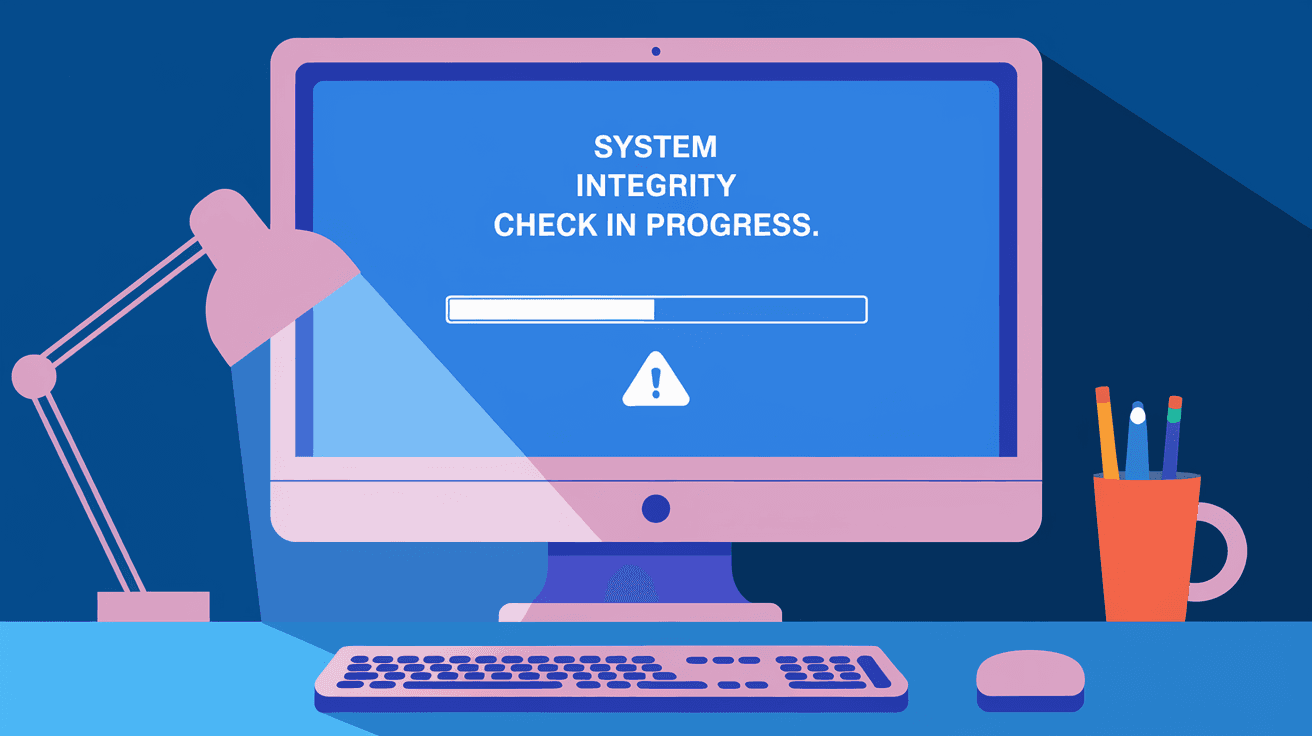
You might have heard the term "system integrity check" and wondered what it really means. In simple terms, it’s a process that helps keep your computer or device safe and working properly. When you run a system integrity check, you’re asking your device to look for any problems or changes that shouldn’t be there.
We all want our computers to run smoothly without errors or security risks. A system integrity check helps by scanning your system to make sure everything is as it should be. In this article, I’ll explain what a system integrity check is, why it’s important, and how you can use it to protect your device.
What is a System Integrity Check?
A system integrity check is a process that verifies the health and security of your computer’s operating system and files. It looks for any changes, errors, or corrupt files that could cause problems or indicate a security breach.
- It compares current system files to original, trusted versions.
- It detects unauthorized changes caused by malware or accidental damage.
- It helps maintain system stability and performance.
This check is often built into operating systems like Windows, macOS, and Linux. For example, Windows has a tool called System File Checker (SFC) that scans and repairs corrupted system files automatically.
Why is System Integrity Important?
System integrity means your computer’s files and settings are in their original, correct state. Maintaining this integrity is crucial because:
- Security: Malware often changes system files to hide or cause damage. Integrity checks can detect these changes early.
- Reliability: Corrupted or missing files can cause crashes or slow performance.
- Compliance: Businesses use integrity checks to meet security standards and regulations.
- Troubleshooting: It helps identify the root cause of system errors.
Without regular integrity checks, your device might become vulnerable to attacks or unstable over time.
How Does a System Integrity Check Work?
A system integrity check works by scanning your system and comparing files against a trusted database or checksum. Here’s how it generally works:
- File Verification: The tool checks system files against known good versions.
- Checksum Comparison: It uses cryptographic hashes to detect any changes.
- Error Reporting: If differences are found, the tool reports or fixes them.
- Repair: Some tools automatically replace corrupted files with correct versions.
For example, Windows SFC scans protected system files and replaces damaged ones from a cached copy. On macOS, the System Integrity Protection (SIP) prevents unauthorized changes to system files.
Common Tools for System Integrity Checks
Different operating systems offer built-in tools to perform system integrity checks. Here are some popular ones:
- Windows System File Checker (SFC): Scans and repairs corrupted system files.
- Windows Deployment Image Servicing and Management (DISM): Fixes Windows image files.
- macOS System Integrity Protection (SIP): Prevents unauthorized system file changes.
- Linux AIDE (Advanced Intrusion Detection Environment): Monitors file integrity and alerts on changes.
These tools help keep your system secure and stable by regularly checking for problems.
When Should You Run a System Integrity Check?
You don’t need to run a system integrity check every day, but it’s a good idea in certain situations:
- After installing new software or updates.
- If your computer starts acting strangely or crashing.
- When you suspect malware infection.
- As part of regular maintenance every few months.
- Before and after major system changes or upgrades.
Running these checks proactively can save you from bigger problems later.
How to Run a System Integrity Check on Windows
If you use Windows, running a system integrity check is straightforward. Here’s how to use the System File Checker (SFC):
- Open the Command Prompt as an administrator.
- Type
sfc /scannowand press Enter. - The tool will scan your system files and repair any issues it finds.
- Wait for the process to complete, which can take several minutes.
- Review the results to see if any files were repaired.
If SFC can’t fix the problem, you can use the DISM tool with commands like DISM /Online /Cleanup-Image /RestoreHealth to repair the system image.
How to Check System Integrity on macOS
macOS uses System Integrity Protection (SIP) to protect critical system files. While SIP runs automatically, you can check its status:
- Open Terminal.
- Type
csrutil statusand press Enter. - The system will tell you if SIP is enabled or disabled.
If you need to repair system files, macOS usually does this during updates or recovery mode. You can also run Disk Utility to check your disk’s health.
Benefits of Regular System Integrity Checks
Keeping your system integrity in check offers many benefits:
- Improved Security: Detects malware or unauthorized changes early.
- Better Performance: Fixes corrupted files that slow down your system.
- Fewer Crashes: Prevents system errors caused by damaged files.
- Peace of Mind: Knowing your system is healthy and secure.
- Compliance: Helps meet IT security policies and standards.
By scheduling regular checks, you can avoid unexpected problems and keep your device running smoothly.
Challenges and Limitations of System Integrity Checks
While system integrity checks are useful, they have some limitations:
- False Positives: Sometimes legitimate changes are flagged as problems.
- Limited Scope: They mainly check system files, not all user data.
- Repair Limits: Some corrupted files may require manual fixes or reinstalling the OS.
- Performance Impact: Running scans can slow down your system temporarily.
Despite these challenges, integrity checks remain a key part of system maintenance.
Best Practices for Maintaining System Integrity
To keep your system healthy, follow these tips:
- Run integrity checks regularly, especially after updates.
- Keep your operating system and software up to date.
- Use trusted antivirus and anti-malware tools.
- Avoid downloading software from unknown sources.
- Backup your important data before making major changes.
- Monitor system logs for unusual activity.
These steps help you catch problems early and protect your device.
Conclusion
A system integrity check is a vital tool that helps keep your computer safe and reliable. By scanning for corrupted or altered files, it protects your system from malware and errors. Whether you use Windows, macOS, or Linux, regular integrity checks can improve your device’s performance and security.
You don’t need to be a tech expert to run these checks. Most operating systems provide easy tools that anyone can use. By understanding what system integrity checks are and how they work, you can take better care of your computer and avoid many common problems.
FAQs
What does a system integrity check do?
It scans your computer’s system files to detect and fix corrupted or unauthorized changes, helping keep your device secure and stable.
How often should I run a system integrity check?
Running it every few months or after major updates or software installs is a good practice to maintain system health.
Can system integrity checks fix all computer problems?
No, they mainly fix system file issues but won’t solve hardware problems or user data corruption.
Is system integrity check the same as antivirus scanning?
No, integrity checks focus on system files, while antivirus scans look for malware and viruses.
What happens if system integrity check finds a problem?
It usually repairs the corrupted files automatically or alerts you to take further action like reinstalling software.