What is Secure Shell (SSH)
Introduction
You’ve probably heard about Secure Shell, or SSH, especially if you work with computers or networks. But what exactly is SSH, and why is it so important? In simple terms, SSH is a secure way to connect to another computer over a network. It helps you manage servers, transfer files, and run commands safely without worrying about hackers spying on your data.
In this article, I’ll explain what SSH is, how it works, and why it’s a must-have tool for anyone who needs secure remote access. Whether you’re a beginner or just want to understand SSH better, this guide will walk you through everything you need to know.
What is Secure Shell (SSH)?
Secure Shell, commonly known as SSH, is a network protocol that allows you to securely connect to another computer over an unsecured network. It was designed to replace older, less secure protocols like Telnet and FTP, which send data in plain text and are vulnerable to eavesdropping.
SSH encrypts the communication between your device and the remote server, ensuring that sensitive information like passwords and commands cannot be intercepted or tampered with. It’s widely used by system administrators, developers, and anyone who needs to manage remote machines safely.
Key Features of SSH
- Encryption: Protects data from being read by unauthorized parties.
- Authentication: Verifies the identity of the user and the server.
- Data Integrity: Ensures data is not altered during transmission.
- Port Forwarding: Allows secure tunneling of other network services.
How Does SSH Work?
SSH works by establishing a secure channel between your local computer (client) and a remote computer (server). Here’s a simple breakdown of the process:
- Connection Initiation: You start an SSH session by connecting to the remote server’s SSH port (usually port 22).
- Key Exchange: The client and server exchange cryptographic keys to create a secure, encrypted connection.
- Authentication: The server verifies your identity using a password or, more securely, an SSH key pair.
- Secure Communication: Once authenticated, you can send commands, transfer files, or forward ports securely.
SSH Key Pair Authentication
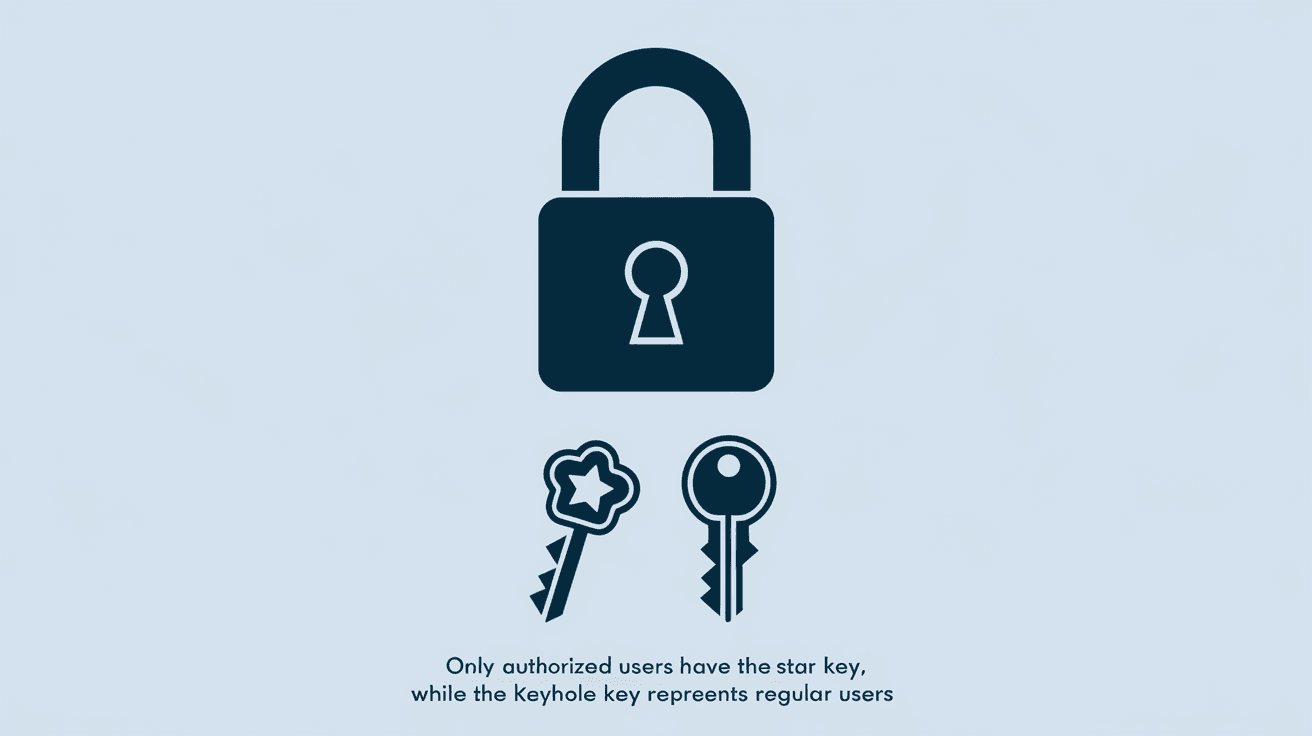
One of the most secure ways to authenticate with SSH is using key pairs. This involves two cryptographic keys:
- Private Key: Stored securely on your local machine.
- Public Key: Placed on the remote server.
When you connect, the server uses your public key to verify your private key without sending the private key over the network. This method is safer than passwords and is widely recommended.
Why is SSH Important?
SSH is crucial because it protects your data and systems from cyber threats. Here’s why you should use SSH:
- Security: Encrypts all data, preventing hackers from stealing sensitive information.
- Remote Management: Allows you to control servers and devices from anywhere.
- Automation: Enables secure scripting and automation of tasks on remote machines.
- File Transfer: Supports secure file transfers using SCP or SFTP protocols.
Without SSH, managing remote systems would be risky and prone to attacks like man-in-the-middle or password sniffing.
Common Uses of SSH
SSH is versatile and used in many scenarios, including:
- Remote Server Access: Admins use SSH to log into servers and perform maintenance.
- File Transfers: Securely move files between computers using SCP or SFTP.
- Tunneling and Port Forwarding: Securely access services behind firewalls.
- Git Operations: Developers use SSH keys to authenticate with Git repositories.
- Automated Backups: Scripts use SSH to connect and back up remote data.
Setting Up SSH: Basic Steps
Getting started with SSH is straightforward. Here’s how you can set it up:
- Install SSH Client: Most operating systems come with an SSH client pre-installed. For Windows, you can use tools like PuTTY or the built-in OpenSSH client.
- Generate SSH Keys: Use commands like
ssh-keygento create a key pair. - Copy Public Key to Server: Use
ssh-copy-idor manually add your public key to the server’s~/.ssh/authorized_keysfile. - Connect to Server: Use
ssh username@server_ipto start a secure session.
Tips for Secure SSH Usage
- Use SSH keys instead of passwords.
- Disable root login over SSH.
- Change the default SSH port to reduce automated attacks.
- Use strong passphrases for private keys.
- Regularly update your SSH software.
SSH Protocol Versions: SSH-1 vs SSH-2
SSH has two main versions: SSH-1 and SSH-2. SSH-2 is the modern, secure version used today.
- SSH-1: The original version, now considered insecure due to vulnerabilities.
- SSH-2: Improved security, supports stronger encryption algorithms and better authentication methods.
Always use SSH-2 for your connections to ensure maximum security.
SSH Encryption Algorithms
SSH uses various encryption algorithms to protect data. Some common ones include:
- AES (Advanced Encryption Standard): Fast and secure symmetric encryption.
- RSA: Used for key exchange and authentication.
- ECDSA (Elliptic Curve Digital Signature Algorithm): Provides strong security with smaller keys.
- ChaCha20: A newer, efficient cipher used in some SSH implementations.
The choice of algorithm depends on the SSH client and server configuration, but modern setups prioritize strong, efficient ciphers.
Troubleshooting Common SSH Issues
Sometimes SSH connections can fail. Here are common problems and how to fix them:
- Connection Refused: Check if the SSH service is running on the server and the port is open.
- Permission Denied: Verify your username, password, or SSH key permissions.
- Timeouts: Network issues or firewall blocking the SSH port.
- Host Key Verification Failed: The server’s key changed; verify it to avoid man-in-the-middle attacks.
Using verbose mode (ssh -v) can help diagnose connection problems.
Alternatives and Complementary Tools to SSH
While SSH is the standard for secure remote access, other tools can complement or replace it in certain cases:
- VPN (Virtual Private Network): Provides secure network access but doesn’t replace SSH’s command-line control.
- RDP (Remote Desktop Protocol): For graphical remote access, mainly on Windows.
- Mosh (Mobile Shell): An SSH alternative optimized for mobile and unstable connections.
- Telnet: An insecure, outdated protocol replaced by SSH.
Using SSH alongside these tools can enhance your remote management capabilities.
Conclusion
Now you know that Secure Shell (SSH) is a powerful and essential tool for secure remote communication. It encrypts your data, authenticates users, and protects your systems from cyber threats. Whether you’re managing servers, transferring files, or automating tasks, SSH keeps your connections safe.
By understanding how SSH works and following best practices, you can confidently use it to secure your remote access needs. Remember to use SSH keys, keep your software updated, and monitor your connections for the best security. SSH is a cornerstone of modern network security, and mastering it will make your digital life much safer.
FAQs
What is the main purpose of SSH?
SSH’s main purpose is to provide a secure way to access and manage remote computers over an unsecured network by encrypting the communication.
How does SSH differ from Telnet?
Unlike Telnet, SSH encrypts all data, making it secure against eavesdropping and attacks, while Telnet sends data in plain text.
Can I use SSH on Windows?
Yes, Windows now includes a built-in OpenSSH client, and tools like PuTTY are also popular for SSH connections on Windows.
What is an SSH key pair?
An SSH key pair consists of a private key (kept secret) and a public key (shared with servers) used to authenticate users securely without passwords.
Is SSH safe to use over public Wi-Fi?
Yes, SSH encrypts your data, making it safe to use even on public Wi-Fi networks, protecting your information from hackers.