What is Secure Boot
Introduction
You might have heard the term "Secure Boot" when setting up a new computer or updating your system. But what exactly is Secure Boot, and why should you care about it? In simple terms, Secure Boot is a security feature that helps protect your computer from harmful software right from the moment it starts up.
In this article, I’ll explain what Secure Boot is, how it works, and why it’s important for keeping your device safe. Whether you’re a casual user or someone curious about computer security, understanding Secure Boot can help you make smarter choices about your device’s protection.
What is Secure Boot?
Secure Boot is a security standard developed to ensure that a device boots using only software that is trusted by the Original Equipment Manufacturer (OEM). It is part of the Unified Extensible Firmware Interface (UEFI), which replaces the older BIOS system in modern computers.
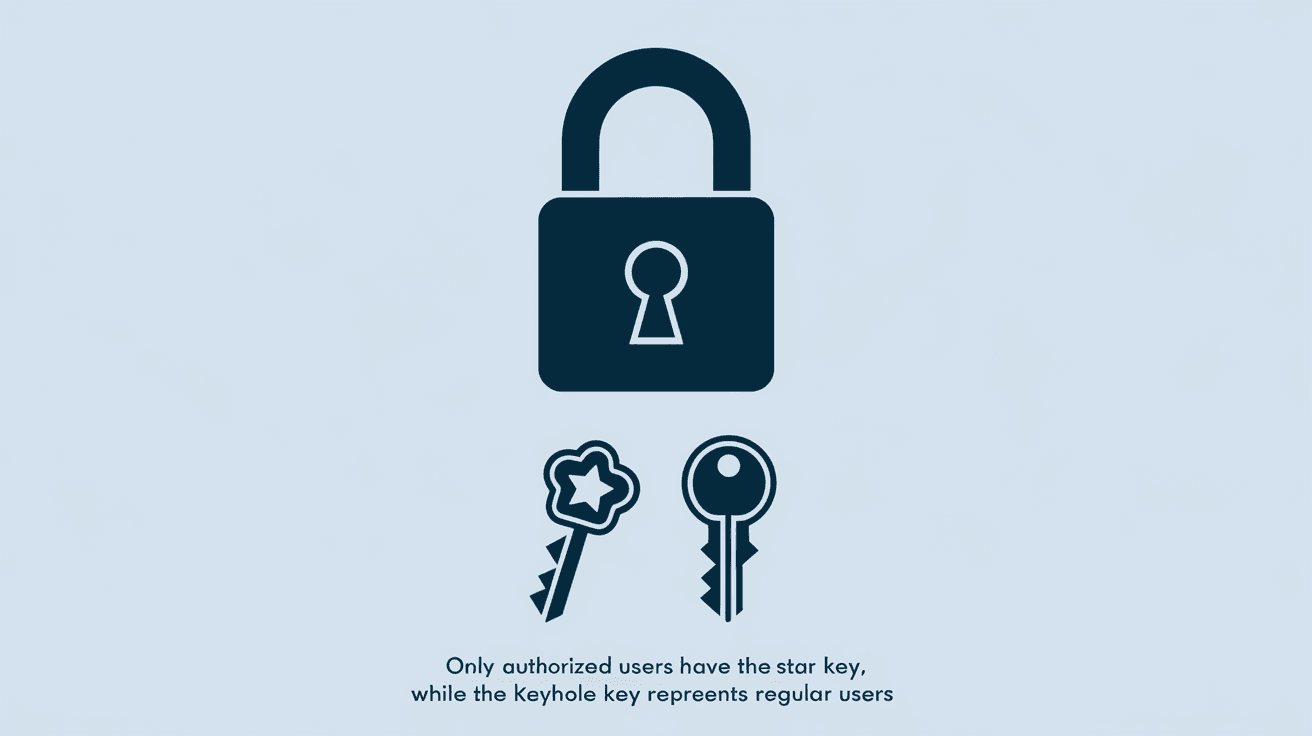
When you turn on your computer, Secure Boot checks the software that loads during startup. If the software has a valid digital signature from a trusted source, the system boots normally. If not, Secure Boot blocks the software from running, preventing potentially harmful programs like rootkits or bootkits from taking control.
How Secure Boot Works
- Digital Signatures: Software components like bootloaders and operating system files are signed with cryptographic keys.
- Verification: Secure Boot compares these signatures against a list of trusted keys stored in the firmware.
- Blocking Untrusted Software: If the signature doesn’t match, the system refuses to load the software.
- Firmware Control: The keys and policies are managed in the UEFI firmware, which is secure and tamper-resistant.
This process ensures that only authorized software can start your device, protecting it from malware that tries to load before the operating system.
Why is Secure Boot Important?
Secure Boot plays a crucial role in protecting your device from advanced threats that target the startup process. Malware that infects the boot sequence can be very dangerous because it loads before your antivirus or operating system can detect it.
Here’s why Secure Boot matters:
- Prevents Bootkits and Rootkits: These are types of malware that hide deep in your system and are hard to remove.
- Protects System Integrity: Ensures that your operating system hasn’t been tampered with.
- Supports Compliance: Many organizations require Secure Boot to meet security standards.
- Improves Overall Security: Acts as the first line of defense against unauthorized software.
By enabling Secure Boot, you reduce the risk of your device being compromised at the most vulnerable stage—when it powers on.
How to Check if Secure Boot is Enabled on Your PC
You might want to know if Secure Boot is active on your computer. Here’s how you can check it on Windows and other systems:
On Windows
- Press Windows + R to open the Run dialog.
- Type
msinfo32and press Enter. - In the System Information window, look for Secure Boot State.
- It will say On if Secure Boot is enabled, or Off if it’s disabled.
On Linux
- Use the command
mokutil --sb-statein the terminal. - It will display whether Secure Boot is enabled or disabled.
If Secure Boot is off, you can enable it in your system’s UEFI firmware settings (often called BIOS settings). Be cautious when changing these settings, as incorrect changes can affect your system’s ability to boot.
Secure Boot and Operating Systems Compatibility
Secure Boot is designed to work with modern operating systems that support UEFI. Here’s how it interacts with popular OSes:
- Windows: Windows 8 and later versions support Secure Boot natively. Microsoft requires Secure Boot for Windows 11 certification.
- Linux: Many Linux distributions support Secure Boot, but some require additional steps to enroll keys or disable Secure Boot temporarily.
- macOS: Apple uses its own secure boot process, which is similar but not the same as Secure Boot.
If you plan to install multiple operating systems or use older software, Secure Boot might cause compatibility issues. You may need to disable it temporarily or configure it to trust certain software.
How to Enable or Disable Secure Boot
Enabling or disabling Secure Boot requires accessing your computer’s UEFI firmware settings. Here’s a general guide:
Steps to Enable Secure Boot
- Restart your computer and enter the UEFI settings (usually by pressing F2, Del, or Esc during startup).
- Find the Secure Boot option in the security or boot menu.
- Set Secure Boot to Enabled.
- Save changes and exit.
Steps to Disable Secure Boot
- Follow the same steps to enter UEFI settings.
- Set Secure Boot to Disabled.
- Save changes and exit.
Note: Disabling Secure Boot can expose your system to security risks. Only disable it if necessary, such as when installing certain hardware or software that isn’t compatible.
Common Issues with Secure Boot
While Secure Boot improves security, it can sometimes cause problems:
- Boot Failures: If the bootloader or OS isn’t signed correctly, Secure Boot may prevent startup.
- Compatibility Problems: Older hardware or software might not work with Secure Boot enabled.
- Dual Boot Challenges: Setting up multiple operating systems can be tricky with Secure Boot active.
To solve these issues, you can:
- Update your firmware and operating system to the latest versions.
- Use signed bootloaders and drivers.
- Temporarily disable Secure Boot during installation, then re-enable it.
Secure Boot vs. Legacy BIOS Boot
Secure Boot is part of the UEFI system, which replaces the older BIOS firmware. Here’s how they differ:
| Feature | Secure Boot (UEFI) | Legacy BIOS Boot |
| Security | Verifies software signatures | No verification, less secure |
| Boot Speed | Faster boot times | Slower boot times |
| Hardware Support | Supports modern hardware | Limited hardware support |
| User Interface | Graphical and easier to navigate | Text-based and limited |
| Compatibility | Requires signed software | Supports older OS and software |
Secure Boot adds a layer of security that BIOS cannot provide, making it the preferred choice for modern devices.
The Future of Secure Boot
As cyber threats evolve, Secure Boot continues to improve. Manufacturers and software developers are working on:
- Enhanced Key Management: Making it easier for users and organizations to manage trusted keys.
- Better Compatibility: Supporting a wider range of operating systems and hardware.
- Integration with Other Security Features: Such as Trusted Platform Module (TPM) and hardware-based encryption.
Secure Boot will remain a key part of device security, helping protect users from increasingly sophisticated attacks.
Conclusion
Secure Boot is a vital security feature that helps protect your computer from malware and unauthorized software during startup. By verifying digital signatures, it ensures only trusted software loads, keeping your system safe from hidden threats like rootkits.
Understanding Secure Boot empowers you to manage your device’s security better. Whether you’re buying a new PC, installing an operating system, or troubleshooting boot issues, knowing how Secure Boot works and how to control it can make a big difference in your device’s safety.
FAQs
What happens if Secure Boot is disabled?
If Secure Boot is disabled, your computer won’t verify the software during startup. This can increase the risk of malware infections but may be necessary for compatibility with some older software or hardware.
Can Secure Boot protect against all types of malware?
Secure Boot mainly protects against malware that attacks the boot process. It doesn’t replace antivirus software but adds an important layer of defense early in the startup.
Is Secure Boot available on all computers?
Most modern computers with UEFI firmware support Secure Boot. Older systems with BIOS do not have this feature.
Can I dual boot Windows and Linux with Secure Boot enabled?
Yes, but you may need to configure Secure Boot or enroll keys for Linux distributions. Some distros support Secure Boot out of the box, while others require extra steps.
Does Secure Boot slow down my computer’s startup?
No, Secure Boot usually speeds up the boot process by using UEFI firmware, which is faster than legacy BIOS. The signature checks add minimal delay.