What is Remote Desktop Security
Introduction
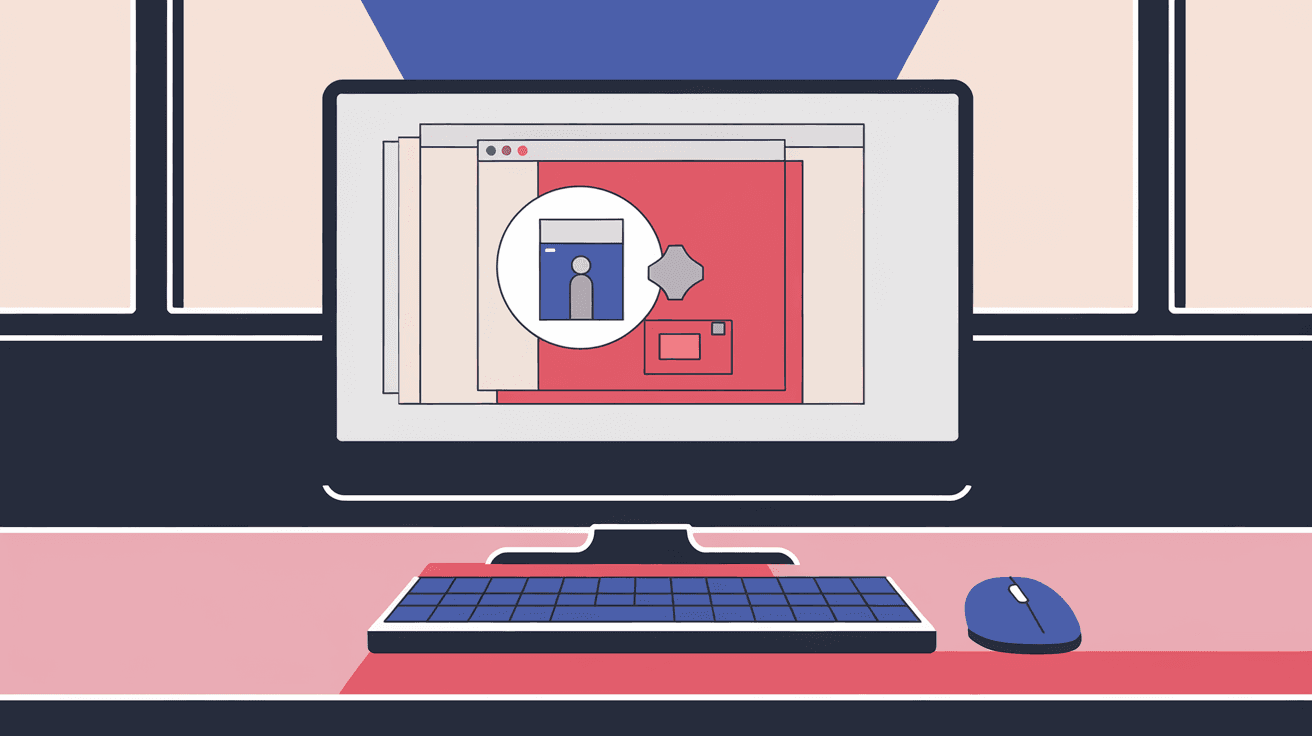
You probably use remote desktop tools to work from home or access your office computer. But have you ever wondered how safe these connections really are? Remote desktop security is all about keeping your data and devices safe when you connect to another computer over the internet.
In this article, I’ll explain what remote desktop security means, why it matters, and how you can protect yourself. Whether you’re a beginner or someone who uses remote access daily, understanding these basics will help you stay secure.
What Is Remote Desktop Security?
Remote desktop security refers to the measures and technologies used to protect remote desktop connections from unauthorized access, data theft, and cyberattacks. When you use a remote desktop, you control another computer from a distance, often over the internet. This convenience comes with risks if the connection isn’t properly secured.
Why Remote Desktop Security Matters
- Remote desktop tools can expose your system to hackers if not protected.
- Sensitive information can be intercepted during remote sessions.
- Weak security can lead to unauthorized control of your computer.
- Cybercriminals often target remote desktop protocols (RDP) to gain access.
Without strong security, your remote desktop connection becomes a gateway for attackers to steal data or install malware.
Common Remote Desktop Security Risks
Understanding the risks helps you see why security is crucial. Here are some common threats:
- Brute Force Attacks: Hackers try many username and password combinations to break in.
- Man-in-the-Middle Attacks: Attackers intercept data between your computer and the remote system.
- Unpatched Vulnerabilities: Outdated software can have security holes hackers exploit.
- Weak Passwords: Simple passwords make it easy for attackers to guess access credentials.
- Open RDP Ports: Leaving RDP ports open on the internet invites attacks.
These risks highlight the need for strong security practices when using remote desktop tools.
How Remote Desktop Connections Work
Before diving into security, it helps to know how remote desktop connections function. Typically, you use software like Microsoft Remote Desktop, TeamViewer, or AnyDesk. Here’s a simple breakdown:
- Client Device: Your computer or device from which you connect.
- Remote Server or Computer: The machine you want to control.
- Network Connection: Usually the internet or a private network.
- Remote Desktop Protocol (RDP): The communication method between devices.
The client sends input commands to the remote computer, which sends back the screen display. This interaction happens in real-time, making it feel like you’re sitting in front of the remote machine.
Key Features of Remote Desktop Security
To protect your remote sessions, several security features are essential:
- Encryption: Scrambles data so attackers can’t read it.
- Multi-Factor Authentication (MFA): Requires extra verification beyond passwords.
- Access Controls: Limits who can connect and what they can do.
- Session Timeout: Automatically ends inactive sessions.
- Network Level Authentication (NLA): Verifies users before establishing a full connection.
- Logging and Monitoring: Tracks who accessed the system and when.
These features work together to reduce the chances of unauthorized access and data leaks.
Best Practices for Remote Desktop Security
You can take many steps to secure your remote desktop connections. Here are some practical tips:
- Use Strong Passwords: Combine letters, numbers, and symbols.
- Enable Multi-Factor Authentication: Add an extra layer of security.
- Keep Software Updated: Regularly patch your remote desktop software and operating system.
- Limit User Access: Only allow trusted users to connect.
- Use VPNs: Connect through a Virtual Private Network to encrypt traffic.
- Change Default Ports: Avoid using the default RDP port (3389) to reduce attacks.
- Disable Unused Accounts: Remove or disable accounts that don’t need remote access.
- Monitor Logs: Regularly check access logs for suspicious activity.
Following these steps helps you build a strong defense against cyber threats.
How Encryption Protects Remote Desktop Sessions
Encryption is a key part of remote desktop security. It converts your data into a secret code while it travels between your device and the remote computer. This way, even if someone intercepts the data, they can’t understand it.
Most modern remote desktop tools use strong encryption standards like TLS (Transport Layer Security). TLS protects your login credentials, files, and commands from being stolen during transmission.
Without encryption, your session data is vulnerable to eavesdropping and man-in-the-middle attacks.
Role of Multi-Factor Authentication (MFA)
Passwords alone are often not enough to keep hackers out. Multi-factor authentication adds a second step to verify your identity. This could be:
- A code sent to your phone.
- A fingerprint or facial recognition.
- A hardware security key.
MFA makes it much harder for attackers to gain access, even if they have your password. Many remote desktop services now support MFA, and enabling it is one of the easiest ways to improve security.
Network Level Authentication (NLA) Explained
Network Level Authentication is a security feature that requires users to authenticate before a remote desktop session is fully established. This means the remote computer checks your credentials early, reducing the risk of unauthorized access and resource use.
NLA helps protect against denial-of-service attacks and reduces the attack surface by blocking unauthenticated connections.
Most modern Windows Remote Desktop services use NLA by default, but it’s important to verify it’s enabled.
Using VPNs for Secure Remote Access
A Virtual Private Network (VPN) creates a secure tunnel between your device and the remote network. This tunnel encrypts all data, making it much harder for attackers to intercept or tamper with your connection.
Using a VPN with remote desktop access adds an extra layer of protection, especially when connecting over public Wi-Fi or untrusted networks.
Many companies require VPN use for remote workers to ensure secure access to internal systems.
Common Remote Desktop Security Tools and Software
Several tools help improve remote desktop security. Here are some popular options:
| Tool/Software | Security Features | Use Case |
| Microsoft Remote Desktop | NLA, encryption, MFA support | Windows remote access |
| TeamViewer | End-to-end encryption, MFA, access controls | Cross-platform remote support |
| AnyDesk | TLS 1.2 encryption, MFA, session logging | Lightweight remote access |
| OpenVPN | Secure VPN tunnels for remote connections | VPN for secure network access |
| Duo Security | MFA integration with remote desktop tools | Adds MFA to existing systems |
Choosing the right tools depends on your needs and environment.
How to Respond to Remote Desktop Security Breaches
If you suspect a security breach involving remote desktop access, act quickly:
- Disconnect the affected system from the network.
- Change all passwords related to remote access.
- Review access logs to identify unauthorized users.
- Run malware scans to detect infections.
- Notify your IT team or security provider immediately.
- Update software and patches to close vulnerabilities.
- Consider a security audit to find weak points.
Prompt action can limit damage and prevent future attacks.
Future Trends in Remote Desktop Security
Remote desktop security continues to evolve as cyber threats grow. Some trends to watch include:
- AI-powered threat detection: Using artificial intelligence to spot unusual access patterns.
- Zero Trust Security Models: Verifying every user and device before granting access.
- Biometric Authentication: More use of fingerprints and facial recognition.
- Cloud-based Remote Desktop Services: Offering scalable and secure access with built-in protections.
- Improved Encryption Standards: Stronger protocols to protect data.
Staying informed about these trends helps you keep your remote desktop connections safe.
Conclusion
Remote desktop security is essential for anyone who accesses computers remotely. Without proper protection, your data and devices can be at risk from hackers and cyberattacks. By understanding the risks and using strong security measures like encryption, MFA, and VPNs, you can keep your remote sessions safe.
Remember, security is not a one-time setup but an ongoing process. Regular updates, monitoring, and good habits will help you enjoy the convenience of remote desktop access without compromising your safety.
FAQs
What is the most secure way to use remote desktop?
Using a VPN combined with multi-factor authentication and strong passwords is the most secure way. Also, ensure encryption and Network Level Authentication are enabled.
Can hackers access my computer through remote desktop?
Yes, if your remote desktop connection is not properly secured, hackers can gain unauthorized access and control your computer.
Is Remote Desktop Protocol (RDP) safe to use?
RDP can be safe if properly configured with strong passwords, encryption, MFA, and limited access. Leaving default settings can expose you to risks.
How does multi-factor authentication improve remote desktop security?
MFA adds an extra verification step beyond passwords, making it harder for attackers to access your remote desktop even if they steal your password.
Should I use a VPN for remote desktop access?
Yes, a VPN encrypts your internet traffic and creates a secure tunnel, protecting your remote desktop sessions from interception and attacks.