What is Port Forwarding?
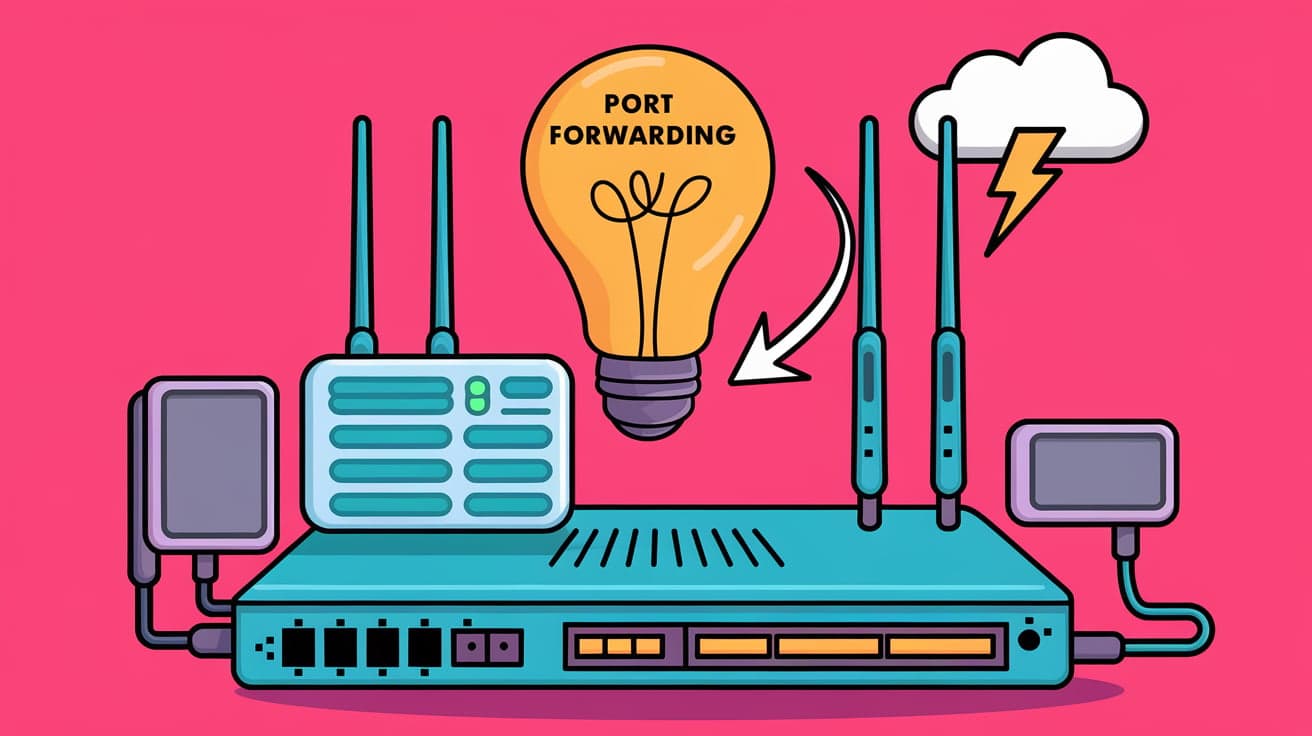
Port forwarding is like opening a specific door in your router to allow data from the internet to reach a device on your local network. Imagine your home network as a private club. Without an invitation, no one can enter, but port forwarding acts as a key for certain guests—specific applications or devices—to come in. It’s an essential tool for online gaming, remote access, hosting websites, or running a home server.
In this guide, I’ll explain what port forwarding is, how it works, and why you might need it. We’ll also discuss its benefits, risks, and how to set it up safely. By the end, you’ll know exactly how to make port forwarding work for you.
How Does Port Forwarding Work?
Port forwarding redirects traffic from the internet to a specific device and application on your private network. When someone connects to your public IP address on a specific port, the router forwards that request to the appropriate device on your local network.
The Basics of Ports
Think of ports as numbered doors on your network. Each port is assigned to a different application or service:
Port 80: Used for web browsing (HTTP).
Port 443: Used for secure web browsing (HTTPS).
Port 22: Used for remote access (SSH).
The Role of the Router
Your router manages traffic between your local network and the internet. By default, it blocks unsolicited connections to keep your network secure. Port forwarding tells the router which port and device to send specific data to.
Why is Port Forwarding Useful?
Port forwarding is essential for certain online tasks. Here’s why you might need it:
1. Hosting Servers
If you want to host a website, gaming server, or file-sharing service on your PC, port forwarding makes your server accessible to users on the internet.
2. Remote Access
Port forwarding allows you to access your home computer, security cameras, or other devices from anywhere in the world. For example, using Remote Desktop Protocol (RDP) on Port 3389.
3. Improved Connectivity
Some online games and applications need open ports to work properly. Port forwarding helps avoid lag and connectivity issues by ensuring a direct route for data.
Benefits of Port Forwarding
Using port forwarding comes with several advantages:
1. Customization
You can control exactly which devices and applications can be accessed remotely.
2. Increased Performance
By routing data directly to the intended device, port forwarding can improve speed and reduce lag in online gaming or streaming.
3. Accessibility
Access your devices and applications from anywhere without requiring expensive third-party software.
Risks of Port Forwarding
While port forwarding is incredibly useful, it also comes with potential risks:
1. Security Vulnerabilities
Opening ports can expose your network to unauthorized access. Hackers might exploit open ports to gain entry.
2. Misconfiguration
If set up incorrectly, port forwarding can break applications or even block legitimate traffic.
3. No Encryption
Port forwarding doesn’t encrypt your data. If you’re accessing sensitive information, consider using a VPN for added security.
How to Set Up Port Forwarding
Setting up port forwarding involves configuring your router to forward traffic on a specific port to a device on your network. Here’s a step-by-step guide:
Step 1: Identify the Device and Port
Determine which device (PC, console, etc.) you want to forward traffic to.
Find the application’s required port(s). For example:
Minecraft uses Port 25565.
FTP servers use Port 21.
Step 2: Assign a Static IP Address
Log in to your router’s settings by entering its IP address (e.g.,
192.168.1.1) in a web browser.Assign a static IP address to the device to ensure it doesn’t change over time.
Step 3: Configure Port Forwarding
Go to the Port Forwarding or Virtual Server section in your router’s settings.
Add a new rule:
Enter the device’s static IP address.
Specify the port number.
Choose the protocol (TCP, UDP, or both).
Save the changes.
Step 4: Test the Port
Use an online tool like canyouseeme.org to check if the port is open.
If the test fails, double-check your configuration.
Port Forwarding vs. Other Techniques
Port forwarding isn’t the only way to access devices remotely. Here’s how it compares to other methods:
1. VPN (Virtual Private Network)
Similarities: Both enable remote access.
Differences: VPNs encrypt your connection, offering better security.
2. UPnP (Universal Plug and Play)
Similarities: UPnP automatically opens ports for applications.
Differences: Port forwarding is manual and more secure than UPnP, which can be vulnerable to attacks.
Common Port Forwarding Issues
Sometimes, port forwarding doesn’t work as expected. Here are some common problems and solutions:
1. Incorrect IP Address
Ensure you’re using the correct internal IP address for the device.
2. ISP Restrictions
Some ISPs block certain ports. Contact your ISP or use a VPN to bypass restrictions.
3. Double NAT
If you have two routers (e.g., a modem/router combo), set the primary router to bridge mode to avoid conflicts.
Best Practices for Safe Port Forwarding
To minimize risks, follow these tips:
Use Strong Passwords: Protect your router with a strong password to prevent unauthorized access.
Close Unused Ports: Once you’re done using a forwarded port, close it to reduce vulnerabilities.
Monitor Your Network: Regularly check for unusual activity or unauthorized connections.
Conclusion
Port forwarding is an essential feature for hosting servers, improving online connectivity, and accessing devices remotely. It works by directing traffic from specific internet ports to devices on your local network. While incredibly useful, it’s important to set it up correctly and follow best practices to avoid security risks.
With this guide, you now have a clear understanding of what port forwarding is, why it’s important, and how to use it safely. Whether you’re a gamer, a tech enthusiast, or just someone who wants remote access to their devices, port forwarding can make your online experience smoother and more accessible.
FAQs
What is port forwarding used for?
Port forwarding is used to direct internet traffic to a specific device or application on your local network. It’s commonly used for remote access, gaming, and hosting servers.
Does port forwarding increase internet speed?
No, port forwarding doesn’t increase your overall internet speed. However, it can improve connectivity for specific applications by routing traffic directly.
Is port forwarding safe?
Port forwarding is safe if configured properly. Use strong passwords, close unused ports, and consider a VPN for added security.
Can I use port forwarding with a dynamic IP address?
Yes, but you’ll need a Dynamic DNS (DDNS) service to maintain access when your public IP address changes.
How do I test if port forwarding works?
You can use online tools like canyouseeme.org to check if your port is open and accessible.