What is Password Manager
Introduction
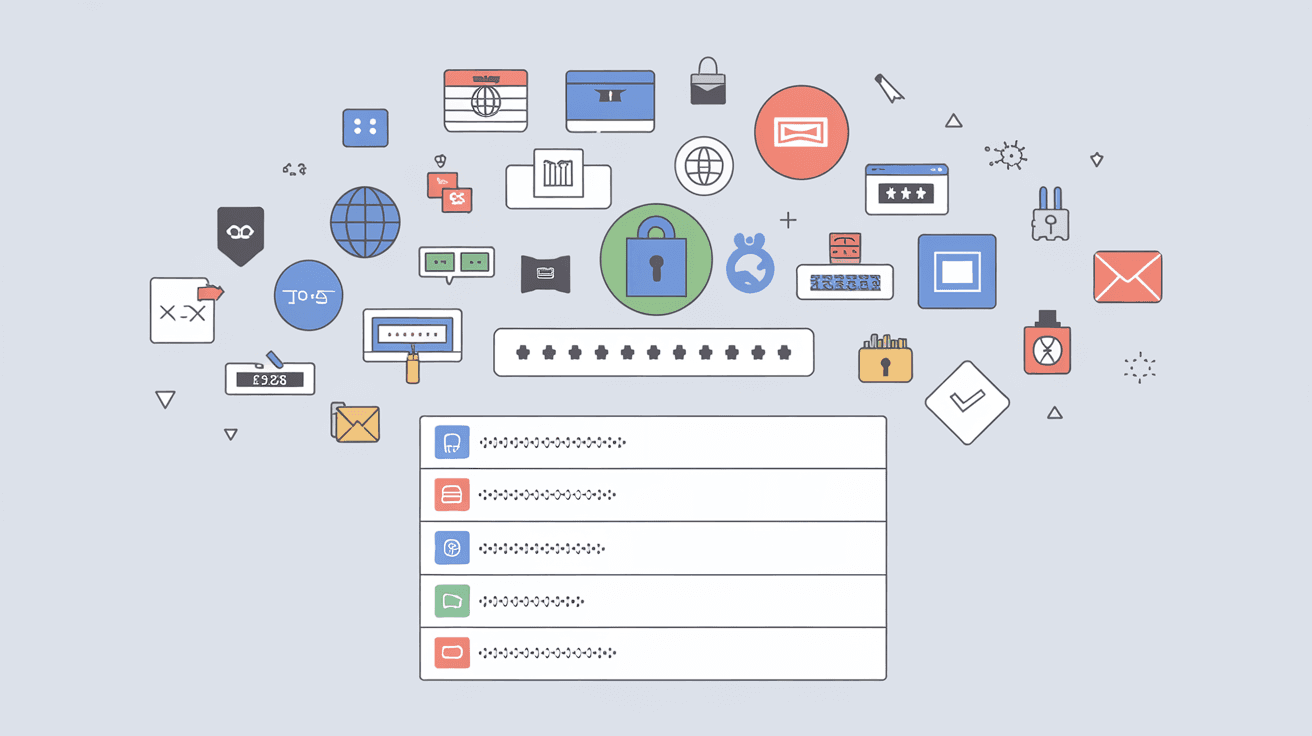
You probably have dozens of online accounts by now. Managing passwords for all of them can be tricky. You might use the same password everywhere or write them down somewhere unsafe. This is where a password manager comes in handy.
A password manager helps you store and organize your passwords securely. It makes logging into websites easier and keeps your accounts safer. In this article, I’ll explain what a password manager is, how it works, and why you should start using one today.
What Is a Password Manager?
A password manager is a software tool that stores and manages your passwords in one secure place. Instead of remembering every password, you only need to remember one master password. The manager fills in your login details automatically when you visit websites or apps.
Here’s what a password manager does for you:
- Stores passwords securely: It encrypts your passwords so no one else can see them.
- Generates strong passwords: It creates complex passwords that are hard to guess.
- Auto-fills login forms: It saves you time by entering your username and password automatically.
- Syncs across devices: You can access your passwords on your phone, tablet, or computer.
Using a password manager means you don’t have to reuse weak passwords or write them down. It helps protect your online identity from hackers and data breaches.
How Does a Password Manager Work?
Password managers use encryption to keep your data safe. When you save a password, the manager encrypts it with a key derived from your master password. This means only you can decrypt and access your stored passwords.
Here’s a simple breakdown of how it works:
- Create a master password: This is the only password you need to remember.
- Save your passwords: Add your login details to the manager.
- Encryption: Your passwords are encrypted and stored securely.
- Auto-fill: When you visit a site, the manager fills in your credentials.
- Sync: Your passwords are synced across devices using secure cloud storage.
Most password managers also offer extra features like two-factor authentication (2FA) to add another layer of security.
Types of Password Managers
There are different types of password managers to choose from. Each has its own advantages depending on your needs.
1. Cloud-Based Password Managers
These store your encrypted passwords on their servers. You can access your passwords from any device with an internet connection.
- Examples: LastPass, Dashlane, 1Password
- Pros: Easy to use, syncs across devices automatically
- Cons: Requires trust in the company’s security
2. Local Password Managers
These store your passwords only on your device. They don’t sync automatically but offer more control over your data.
- Examples: KeePass, Bitwarden (local mode)
- Pros: More privacy, no cloud storage risks
- Cons: Manual syncing needed, less convenient
3. Browser-Based Password Managers
Most modern browsers like Chrome, Firefox, and Edge have built-in password managers.
- Pros: Convenient, no extra software needed
- Cons: Less secure than dedicated managers, limited features
Choosing the right type depends on how much convenience and security you want.
Why Should You Use a Password Manager?
Using a password manager is one of the best ways to improve your online security. Here’s why you should consider it:
- Stronger passwords: It generates unique, complex passwords for every account.
- Avoids password reuse: Reusing passwords is risky because one breach can compromise multiple accounts.
- Saves time: Auto-filling passwords speeds up logging in.
- Protects against phishing: Some managers warn you if a website looks suspicious.
- Keeps passwords safe: Encryption protects your data even if the manager’s servers are hacked.
With cyberattacks becoming more common, a password manager is a simple tool that makes a big difference.
How to Choose the Best Password Manager for You
Not all password managers are the same. Here are some factors to consider when picking one:
- Security: Look for strong encryption (AES-256) and zero-knowledge architecture.
- Ease of use: Choose one with a simple interface and good customer support.
- Compatibility: Make sure it works on your devices and browsers.
- Features: Check for password generation, auto-fill, 2FA support, and breach alerts.
- Price: Many have free versions, but premium plans offer more features.
Try a few free options before committing to a paid plan. Popular choices like Bitwarden and 1Password are highly rated for security and usability.
Setting Up and Using a Password Manager
Getting started with a password manager is easy. Here’s a step-by-step guide:
- Download and install: Choose a trusted password manager app or browser extension.
- Create a master password: Make it long, unique, and memorable.
- Import or add passwords: Import saved passwords or add new ones manually.
- Enable auto-fill: Allow the manager to fill in login forms automatically.
- Set up syncing: Connect your devices to access passwords anywhere.
- Use password generator: Replace weak passwords with strong ones.
- Enable two-factor authentication: Add extra security to your master account.
Regularly update your passwords and review saved entries to keep your accounts secure.
Common Myths About Password Managers
Many people hesitate to use password managers because of myths. Let’s clear up some common misunderstandings:
Myth 1: Password managers are only for tech experts.
Actually, most are user-friendly and designed for everyone.Myth 2: If the password manager is hacked, I lose everything.
Passwords are encrypted, so hackers can’t read them without your master password.Myth 3: I don’t need a password manager if I use simple passwords.
Simple passwords are easy to guess or crack. A manager helps create strong ones.Myth 4: Password managers cost too much.
Many reliable options are free or affordable.Myth 5: I can remember all my passwords.
As accounts grow, it’s nearly impossible to remember strong, unique passwords for each.
Understanding these facts can help you feel confident about using a password manager.
Security Tips When Using a Password Manager
While password managers improve security, you should follow best practices:
- Use a strong master password that only you know.
- Enable two-factor authentication on your password manager account.
- Keep your software updated to patch vulnerabilities.
- Avoid sharing your master password with anyone.
- Regularly back up your password database if using local storage.
- Beware of phishing attempts asking for your master password.
Following these tips keeps your password manager and accounts safe.
The Future of Password Managers
Password managers continue to evolve with technology. Here are some trends shaping their future:
- Biometric logins: Using fingerprints or facial recognition to unlock password vaults.
- Passwordless authentication: Combining password managers with secure tokens or biometrics to reduce reliance on passwords.
- AI-powered security: Detecting suspicious login attempts and suggesting stronger passwords.
- Integration with smart devices: Managing passwords on wearables and IoT devices.
- Improved user experience: Making password management seamless and less intrusive.
These advances will make managing your online security easier and more secure.
Conclusion
A password manager is a powerful tool that helps you keep your online accounts safe and organized. It stores your passwords securely, generates strong ones, and saves you time by auto-filling login details. Whether you choose a cloud-based or local manager, using one reduces the risk of hacking and identity theft.
If you haven’t tried a password manager yet, now is the perfect time. With cyber threats on the rise, protecting your digital life is essential. Start with a trusted password manager today and enjoy safer, easier online access.
FAQs
What is a master password in a password manager?
A master password is the single, strong password you create to access your password manager. It protects all your stored passwords, so it must be unique and hard to guess.
Can password managers be hacked?
While no system is 100% secure, password managers use strong encryption to protect your data. Even if hacked, your passwords remain unreadable without the master password.
Are password managers free to use?
Many password managers offer free versions with basic features. Premium plans with extra features like syncing across devices or breach alerts usually require a subscription.
How do password managers generate strong passwords?
Password managers use algorithms to create random combinations of letters, numbers, and symbols. These passwords are much harder to guess or crack than simple ones.
Can I use a password manager on multiple devices?
Yes, most password managers sync your encrypted passwords across devices like phones, tablets, and computers, so you can access them anywhere securely.